Printers

FREE next-day delivery
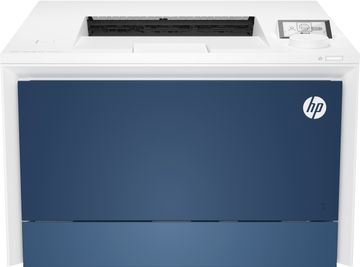
HP LaserJet Pro 4202dw Colour Laser Printer
- Get 20% off Cartridge Save cartridges with this printer
- Get £50 cashback.
Maximum 5 claims per customer
FREE next-day delivery
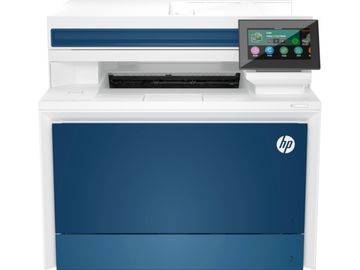
HP LaserJet Pro MFP 4302fdw Colour Laser Printer
- Get 20% off Cartridge Save cartridges with this printer
- Get £120 cashback.
Maximum 5 claims per customer
FREE next-day delivery
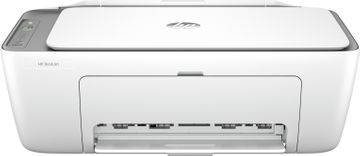
FREE delivery
Delivery takes 2-4 days
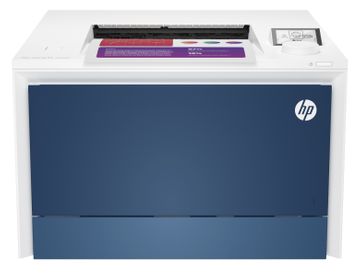
HP LaserJet Pro 4202dn Colour Laser Printer
- Get 20% off Cartridge Save cartridges with this printer
- Get £50 cashback.
Maximum 5 claims per customer
FREE next-day delivery
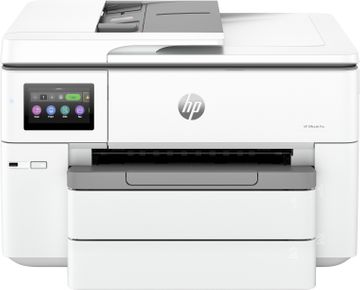
FREE next-day delivery
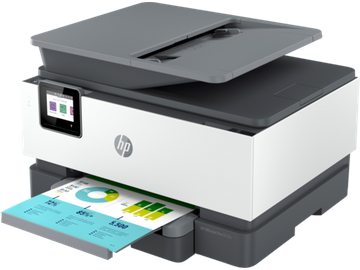
FREE delivery
Delivery takes 2-4 days
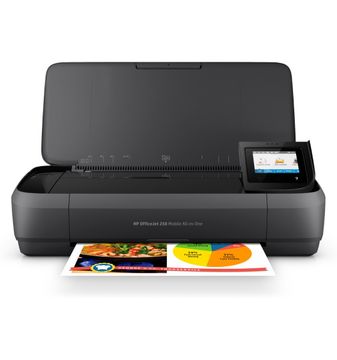
HP OfficeJet 250 Wireless Thermal Inkjet Printer
- Get 20% off Cartridge Save cartridges with this printer
FREE next-day delivery
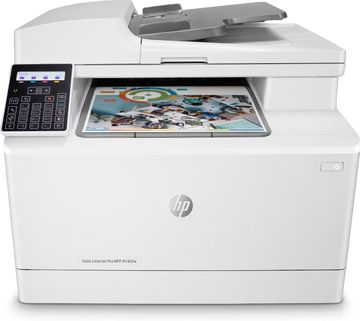
HP Colour LaserJet Pro MFP M183fw A4 Multifunction Printer
- Get 20% off Cartridge Save cartridges with this printer
FREE next-day delivery
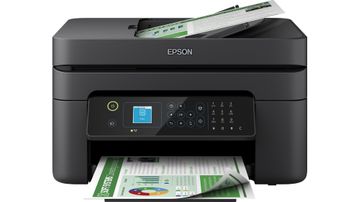
Epson WorkForce WF-2930DWF A4 Inkjet Printer
- Get 20% off Cartridge Save cartridges with this printer
FREE next-day delivery
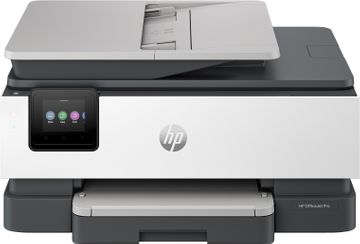
FREE next-day delivery
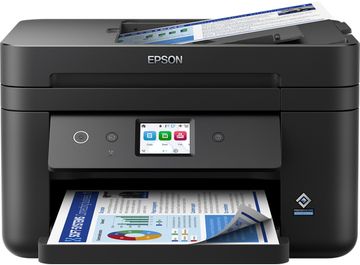
Epson WorkForce WF-2960DWF A4 Inkjet Printer
- Get 20% off Cartridge Save cartridges with this printer
FREE next-day delivery
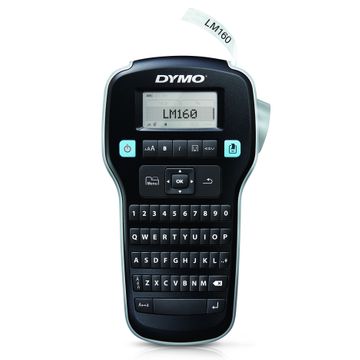
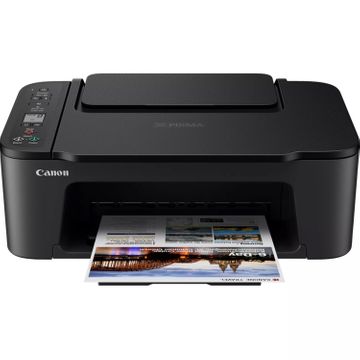
FREE next-day delivery
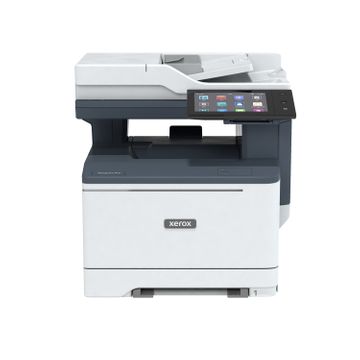
FREE delivery
Delivery takes 2-4 days